Configuration File Guide
MagmaCore's shared configuration loader rejects unreadable or invalid YAML before applying defaults, including inherited configurations. Shared saves write and flush a temporary file before replacing the destination, using an atomic replacement when supported. Save failures are reported to the caller; resolve the file error before retrying.
This page helps you understand how to correctly edit a .yml (.yaml) file. Nightbreak plugins use .yml configuration files. Invalid YAML or unsupported values can prevent a file from loading; some settings fall back to defaults. Keep a backup and read the console after reloading.
Below, you will find every configuration entry type and how they should be formatted if you are modifying any values!
How to edit .yml files
Files are stored in the .yml file format and Notepad++ is the recommended file editing software for configuration work. Of course you can use any other text editor of your choice.
Retired configuration files
When a plugin update retires a configuration format, MagmaCore moves matching files into plugins/MagmaCore/outdated files/<PluginName>/<archive batch>/, preserving their contents and relative paths. The console reports the archive location. This also runs around content imports, so an older package cannot silently restore a retired file into active use.
The plugin regenerates its bundled defaults where replacements exist. Retired DLC files need an updated content package. Custom files need to be rewritten using the current format; compare the archived file with the relevant reference and carry over your intended settings. Restoring an archived file unchanged can cause it to be archived again.
Archival uses specific rules shipped by the owning plugin. An unknown setting or a malformed file is not, by itself, proof of a retired format. Keep reading the console for ordinary loading errors too.
Some rules retire an old bundled default rather than a format. A rule can name an exact value that only an older default contains, such as an old menu slot or quest list, and the whole file is archived when that value is still present. A rule for a bundled Lua script compares the file's SHA-256 checksum, ignoring carriage returns, with earlier bundled versions of that script. Only an unedited copy matches, so a script you changed stays in place, and the plugin then writes its current default.
For example, BetterStructures replaces the old Valid worlds configuration with Valid worlds v2. EliteMobs archives selected obsolete bundled items, the old guild welcome quest, and unedited copies of earlier bundled Lua powers and enchantment scripts. FreeMinecraftModels also archives recognized retired equipped-item Lua scripts; current prop scripts and enchantment effects use their own supported contracts.
Duplicate filenames
Plugins that load content through MagmaCore identify each content file by its filename, including files in subfolders. When two files in the same content folder share a filename, only the one whose full path sorts first, ignoring case, loads. The console warns with the loaded and skipped paths. It stays quiet when the copies are identical, or when they are YAML files and every value in the skipped copy matches the loaded one, which happens when two content packages ship the same shared file. Give files that should load separately unique filenames. Some folders are stricter. Duplicate schematic filenames under BetterStructures' modules folder stop module loading.
Boolean
Boolean values are true or false. This is what they look like:
value1: true
value2: false
Booleans only ever accept either true or false values. They are usually used to turn specific features on or off.
String
String values are usually just normal text. It is highly recommended that you create String values between quotes, following this format:
value: "String"
Quote strings containing color codes, especially when the first character is &. In a supported text field, "&aTest" produces green text. The availability of colored text depends on the configuration setting. Check this page for color codes.
Details
Why?
Configuration strings can accept special characters such as&. If these special characters occupy the first character, such as in value: "&aString", if the String is not between quotes YAML can interpret & as an anchor rather than ordinary text. Quote the full string to avoid a parse error or an unintended value.Serialized Location
Serialized Location is a specific type of String which looks like this:
location: world,1.0,2.0,3.0,4.0,5.0
These are used to store and configure locations. They follow this format: worldName,X,Y,Z,YAW,PITCH. Yaw and pitch determine the direction that the player is looking, using the same values as Minecraft locations.
Multiplier
Multiplier values multiply plugin values by that number. These values should never be between quotes. Here's an example:
damageMultiplier: 1.0
In this case, the damage multiplier would be multiplied by 1, meaning that there is no change from the default value. If the Multiplier was 2.0, the value would be multiplied by 2.0. If it was 0.5, it would be multiplied by 0.5.
For those not good with fractions, multiplying by 0.5 is the same as dividing by 2. The allowed range belongs to the particular setting; check its reference before using zero, a negative value, or a large multiplier.
Integer
Integer values are just whole numbers. Example:
value: 10
Only fields whose scripting documentation explicitly supports numeric ranges accept ~. This is a string parsed by that feature, not a YAML number or a general configuration option. Example:
value: 1~10
The main thing about Integer values they must be whole numbers. This means that 10.1 is not valid.
Double
Doubles are decimal numbers that can have fractional components. Example:
value: 10.01
Only fields whose scripting documentation explicitly supports numeric ranges accept ~. This is a string parsed by that feature, not a YAML number or a general configuration option. Example:
value: 1.0~10.01
Doubles can also happen to be whole numbers like integers, like 10.0 or even represented as 10.
Float
Floats are 32-bit decimal numbers with less precision than Doubles. Example:
value: 10.42452
Only fields whose scripting documentation explicitly supports numeric ranges accept ~. This is a string parsed by that feature, not a YAML number or a general configuration option. Example:
value: 1.0~10.42452
Floats can also be whole numbers, like 10.0 or even represented as 10.
String List
String Lists are lists of String values. These tend to be the hardest values to configure, as they require a very specific config format:
valuesList:
- "value,1"
- "value,2"
- "value,3"
Like with Strings, it is recommended to keep the values between quotes. Each String List has its own format, so you'll have to find the specific format the one you're editing requires; however, globally, that is what the overall format should look like.
Map List
A map list contains several mapping entries. This YAML example nests each value under a named map; the actual keys depend on the setting:
parentMap:
  - Map1:
      key: value
  - Map2:
      key: value
      keyForList:
        - "value1"
        - "value2"
As you can see, Map Lists can contain any kind of format inside them, but if you are using them in scripting you will need to refer to the documentation to see which are the valid keys and values for the different maps.
Color Codes
You can also assign colors or make text bold using the following modifiers:
| Code | Color | Example |
|---|---|---|
| &4 | Dark red | &4Dark red example. |
| &c | Red | &cRed example. |
| &6 | Orange | &6Orange example. |
| &e | Yellow | &eYellow example. |
| &2 | Dark green | &2Dark green example. |
| &a | Green | &aGreen example. |
| &b | Aqua | &bAqua example. |
| &3 | Dark aqua | &3Dark aqua example. |
| &1 | Dark blue | &1Dark blue example. |
| &9 | Blue | &9Blue example. |
| &d | Light purple | &dLight purple example. |
| &5 | Dark purple | &5Dark purple example. |
| &f | White | &fWhite example. |
| &7 | Gray | &7Gray example. |
| &8 | Dark gray | &8Dark gray example. |
| &0 | Black | &0Black example. |
| &r | Reset color | &rReset example. |
| &l | Bold | &lBold example. |
| &o | Italic | &oItalic example. |
| &n | Underline | &nUnderline example. |
| &m | Strikethrough | |
| &k | Random | &k &fexample. |
As you can see in the examples, the modifiers follow the regular minecraft syntax except that the § is replaced with a & when used with EliteMobs. You can use this to modify most EliteMobs text such as, mob names, quest text, dungeon names etc.
Take note that when working properly the modifiers themselves will not show in your text. They are only shown here for demonstration purposes.
It is also possible to combine colors and other text modifiers. For example, you can do:
If we wanted our custom mob to have a nice fancy colorful name we would do the following:
name: "$normalBossLevel &aScary &dDragon"
As of EliteMobs 10 you can also use color gradients for any EliteMobs text, as shown in this example:
name: "&cNormal Red Text <gradient:#FF6B00:#FFD700:#FFFF00> Cool Gradient Text </gradient>"
In this example:
&c applies standard red formatting to the text before the gradient.<gradient:...> starts the gradient definition.#FF6B00, #FFD700, and #FFFF00 are the colors used in the gradient.Cool Gradient Text is the text affected by the gradient.</gradient> ends the gradient section.
Only the text inside the gradient tags is affected; formatting outside the tags remains unchanged.
Gradients are not an EliteMobs-only feature any more. The text parser lives in MagmaCore, so the same syntax works in supported text fields for every plugin that ships with it, alongside the rest of the MiniMessage tag set (<rainbow>, <#RRGGBB>, named colors such as <red>, decorations such as <bold>, and so on).
Material
Material values are just Materials that you can find in MineCraft, such as IRON_CHESTPLATE. For a list of valid Materials see this page.
helmet: IRON_HELMET
Materials are used as values in several settings such as equipment for mobs, loot drops, quest rewards etc.
Filename
Filename values are just .yml config files that are formatted to be used with MagmaGuy's plugins. These could be anything from items to quests.
uniqueLootList:
  - filename: magmaguys_toothpick.yml
Trimming Worlds
You can reduce a world's size for distribution by trimming unwanted terrain with a compatible tool such as WorldBorder. Check support for your exact server version and work on a backup copy; an old compatibility listing does not establish support for a newer world format.
Details
Tip
If you are doing this for the first time it might be a good idea to create a backup of your world just in case something goes wrong.Once the plugin is installed, navigate to the middle of the world or the specific area you wish to trim. Then, execute the command /wb set x, where x represents the approximate radius size you want for your area.
Details
Tip
If/wb is not working for you, try /worldborder:wb.After executing this command, fly to the edges of your world to verify that the world border has been properly set and covers the intended size. You will recognize reaching the world border edge when you are pushed back, accompanied by a message in the chat.
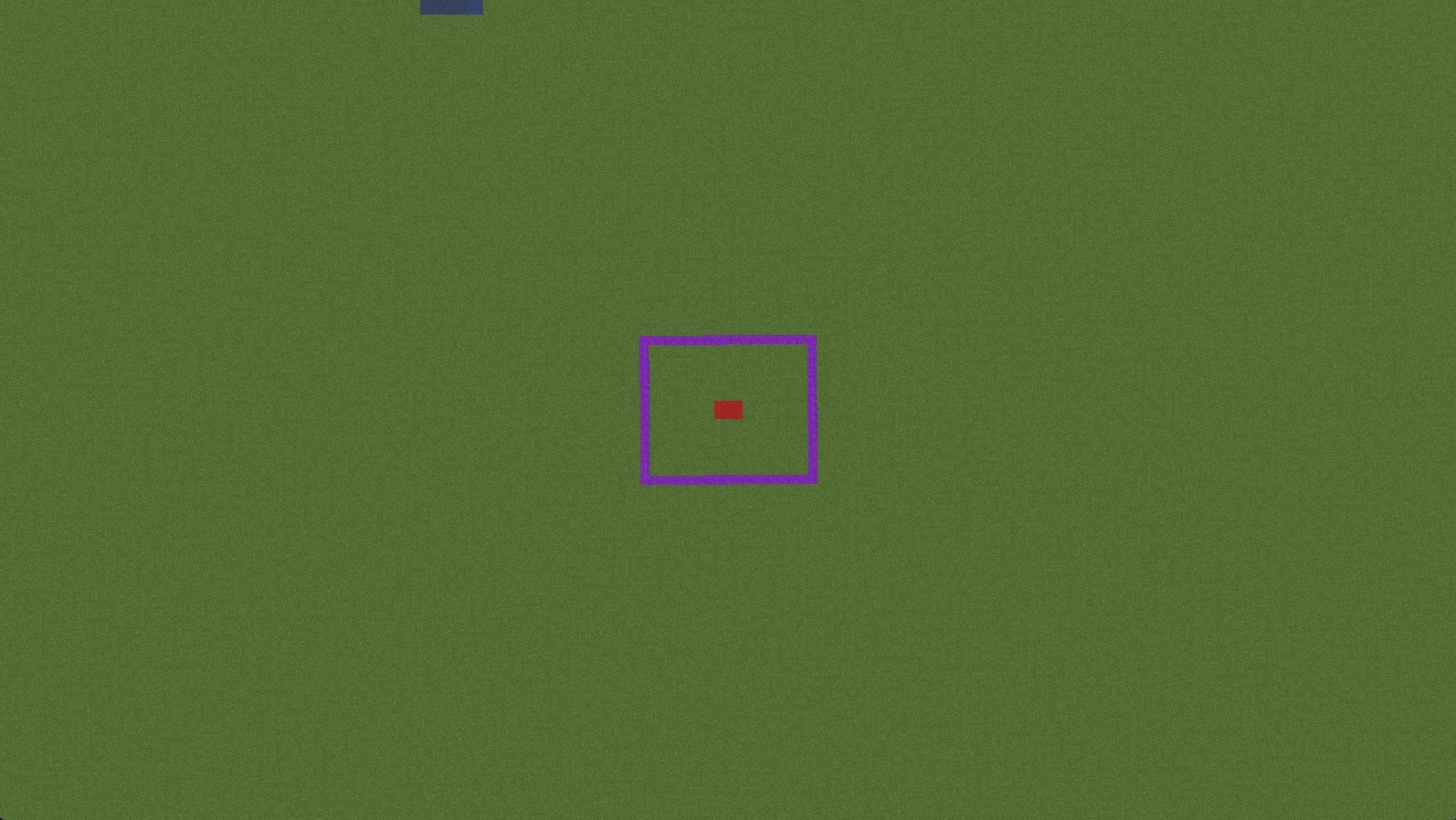
In the image above, we aim to trim the world around the purple blocks, leaving only a few chunks around them. To achieve this, we stand in the middle of the purple area on the red squares and execute /wb set 50, setting the world border just beyond the purple area.
Next, use /wb trim [freq] [pad]. Padding is measured in blocks, and frequency controls how many chunks are checked per second. /wb trim 200 20 checks up to 200 chunks per second while retaining 20 blocks beyond the border. Inspect that buffer and choose a larger padding if needed before confirming with /wb trim confirm. These units are defined in WorldBorder's trim command.
Remove this world's plugin border with /wb clear while standing in that world, or leave it in place.
Trimming the world folder
Stop the server and work on a backup copy. Do not delete everything except region, raids.dat, and level.dat: terrain, entities, points of interest, and dimension data can all be required. Preserve the actual directory structure used by your server and plugin.
In older Vanilla worlds, the Nether uses DIM-1 and the End uses DIM1. In Vanilla 26.1, default dimensions moved to dimensions/minecraft/overworld, dimensions/minecraft/the_nether, and dimensions/minecraft/the_end, including their region, entities, and poi folders. Server software and version determine the required layout. Import the copy on a separate server and inspect the world before distributing it.