Creating content
Creating the build
Keep structures under 100x100x100 blocks as a practical starting point for terrain fit and resource use. This is a recommendation, not a hard size limit. Larger structures require more memory and placement work, and need a suitable location within the world's height limits.
Special blocks
BetterStructures has two special blocks: barriers and bedrock. Any other block that WorldEdit can paste will be pasted normally, but barriers and bedrock blocks are the exception.
| Block | Behavior | Use Case |
|---|---|---|
| Barrier | Does not place any block at that location - preserves original terrain | Round edges of paste, mold walls to caves, natural integration |
| Bedrock | Preserves an existing solid block; otherwise places the pedestal material | Create floors for rails without replacing existing solid terrain |
Spawn signs
BetterStructures can use signs with specific text to spawn mobs and bosses from EliteMobs and MythicMobs at specific locations, or to hand a marker to another plugin.
Spawn signs are pasted first, then removed immediately before their spawn attempt after block pasting finishes. They can be visible during the paste, and removal does not prove spawning succeeded. An unrecognised tag, invalid vanilla entity type or missing MythicMobs ID leaves an ordinary sign. If EliteMobs or MythicMobs is absent, a schematic using its tag is excluded from the structure registry entirely.
After the blocks are pasted, BetterStructures finishes the structure in this order: the pedestal, clearing leftover trees above surface structures, loot containers, [spawn] mobs, [elitemobs] bosses, [mythicmobs] mobs, entities saved in the schematic, then [custom] markers. If a mob or boss fails to spawn, the remaining steps are skipped, BuildPasteCompleteEvent does not fire and no new-building message is sent.
| Sign Type | Line 1 | Line 2-4 | Plugin Required |
|---|---|---|---|
| Vanilla Mobs | [spawn] | Entity type on line 2 | None |
| EliteMobs | [elitemobs] | Boss filename, spread across lines 2-4 | EliteMobs |
| MythicMobs | [mythicmobs] | Mob name on line 2, optional level on line 3 | MythicMobs |
| Other plugins | [custom] | Marker ID, spread across lines 2-4 | A plugin that listens for BuildCustomMarkerEvent |
Standing, wall and hanging signs are recognised by their Bukkit material names ending in _SIGN; there is no fixed wood-type list. Write the tag on the front, since modern sign parsing reads front_text, not the back. Lines typed in-game, JSON text and text components written by plugins are all read as plain text. Tag matching ignores case. Keep entity IDs and filenames exact, without extra spaces.
The MythicMobs level line is optional. An empty line 3 uses level 1. Numeric levels below 1 become 1. A level that is not a number, or a mob ID that MythicMobs does not know, makes the spawn fail, which skips the structure's remaining finishing steps.
Spawn Sign Examples
Vanilla Mobs
[spawn]
ZOMBIE
Spawns a persistent zombie at that location, centred horizontally on the sign block. Use a spawnable Spigot EntityType, such as an armor stand or end crystal. The enum also contains types the world cannot spawn directly, so merely accepting the name does not guarantee success. If the world refuses the spawn, the structure's remaining finishing steps are skipped.
EliteMobs
[elitemobs]
test_boss_with
_a_long_name
.yml
Long filenames can span lines 2-4, which are joined without separators. Arena block breaking and placement are protected when protectEliteMobsRegions is enabled and both EliteMobs and WorldGuard are installed. Each spawned regional boss gets a region. Its death removes that region only when the boss has removeAfterDeath: true, so a respawning boss can leave protection active. A failed EliteMobs spawn, such as a filename that matches no boss, skips the structure's remaining finishing steps.
MythicMobs
[mythicmobs]
SkeletalKnight
10
Spawns SkeletalKnight at level 10.
Custom markers
[custom]
Zombie_Plus
BetterStructures does nothing with the ID itself. After the structure's blocks, loot, mobs and entities are pasted, it removes the sign and fires BuildCustomMarkerEvent with the ID and the sign's location, so another plugin can spawn its own mob, place a block or run any other logic there. Lines 2-4 are joined without separators, like EliteMobs filenames, and each line is also available on its own. Without a listening plugin the marker simply disappears. A [custom] sign with blank lines 2-4 stays as an ordinary sign and logs a warning. Custom markers work in regular structures, not modular dungeons.
Schematics
Schematics are files generated by WorldEdit or FastAsyncWorldEdit which contain the blocks for the build that BetterStructures will be using. BetterStructures uses the .schem file format (the modern WorldEdit standard). Make sure to save your schematics using the .schem format, not the legacy .schematic format.
See the WorldEdit clipboard guide for copying and saving. The basic steps are:
- pick a corner of the build and use the command
//pos1 - pick the diagonally opposite corner and use the command
//pos2 - use the
//copycommand - use
//schem save <schematicname>with the desired filename. - copy the resulting
.schemfrom your editor's schematic folder intoplugins/BetterStructures/schematics, then reload BetterStructures. WorldEdit's default folder isplugins/WorldEdit/schematics.
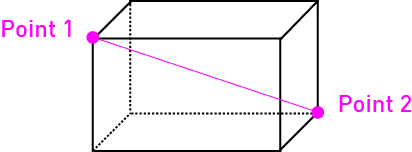
Make sure you run the command //pos1 on point 1 and //pos2 on point 2!
Anchor point
Anchor points are where you run the //copy command for the schematic. They determine the origin point of the structure when placed in the world.
| Build Type | Recommended Anchor Position | Reason |
|---|---|---|
| Surface | Lowest point of the floor | Ensures proper ground alignment |
| Underground | On top of the build | Allows correct burial depth determination |
| Liquid | On top of the water | Proper water surface placement |
| Air/Sky | On top of the build | Correct altitude positioning |
Choose the copy position deliberately. Its offset is saved with the schematic and affects placement and rotation. Keep it near the build to make that relationship easy to inspect; distance alone does not increase the number of blocks in the saved selection.
Schematic configurations
Every schematic file has a schematic configuration. If a schematic file has just been added to the server, the configuration will be generated after a restart or after a /betterstructures reload.
The .yml is generated in the same folder as the .schem. plugins/BetterStructures/schematics is scanned recursively, so a content pack that ships its schematics in a subfolder gets its configs written into that same subfolder. Keep filenames unique across the whole schematics tree. For duplicate structure filenames, BetterStructures loads the first file in stable absolute-path order and logs both the selected and skipped paths. Byte-identical duplicates load the same structure either way and are skipped without a warning. It does not delete either file or fall back to the skipped duplicate if the selected file is broken. Duplicate module filenames still stop initialization.
A .yml without a matching .schem does not create a structure. The loader starts from the discovered schematic files. If any selected schematic cannot be read, initialization fails instead of accepting a partial structure registry, even if its configuration would disable it.
These configurations allow you to set the following settings for the schematic paste:
| Key | Default | Mandatory | Description |
|---|---|---|---|
isEnabled | true | ❌ | Whether the schematic is enabled. If disabled, it will not be placed anywhere. |
weight | 1.0 | ❌ | Relative selection weight among eligible schematics. Use finite, positive values. 2.0 has twice the weight of 1.0. A negative or non-finite value logs a warning and becomes 0, and a structure with weight 0 is never picked. Use isEnabled: false to disable a structure. |
pedestalMaterial | Environment fallback | ❌ | Fallback for pedestal blocks (Spigot Material names). Sampled terrain materials take priority when available. |
generatorConfigFilename | - | ✅ | Generator config filename including .yml extension. Schematics without this will not spawn. |
treasureFile | Generator default | ❌ | Override treasure file for this structure's chests. Generally better to modify the generator instead. |
barrelTreasureFilename | Generator default | ❌ | Override treasure file for this structure's barrels. Defaults to whatever the generator (or its fallback treasure_barrel_food.yml) provides. |
Loot containers: BetterStructures automatically detects chests, trapped chests and plain (uncoloured) shulker boxes placed inside schematics and fills them with the chest treasure file. Barrels are filled separately using the barrel treasure file (default treasure_barrel_food.yml), and can be disabled per-generator with generateLootInBarrels: false. No special signs or configuration are needed to mark these containers.
A schematic treasure override still requires a valid generator treasure table for that container type. Barrels also require the generator's barrel-loot toggle. Invalid overrides warn and fall back to the generator; existing container contents are preserved and new loot uses empty slots.
Newly generated schematic configs start with a blank generatorConfigFilename. Choose a loaded file such as generator_surface_global.yml, then run /bs reload. Until that field is valid, the structure cannot spawn and does not appear in /bs place completion. The console reports the affected config path and lists available generator examples.
Disabled generators: if the generator named by generatorConfigFilename has isEnabled: false, the schematic is skipped entirely, even if the schematic's own isEnabled is true.
Configuration Details
pedestalMaterial
Pedestals fill up to ten blocks below each non-air bottom column of surface and underground buildings, stopping when a block is not considered replaceable terrain. Sky and liquid structures do not get this downward fill. The same material selection is used for bedrock markers within schematics.
The plugin samples surface and underground materials around the placement volume and randomly chooses from the appropriate group, weighted by frequency. It does not always choose the most common material. A configured pedestalMaterial is used only when the relevant sample group is empty; it does not override a populated group. Choose a solid block material. Without a configured fallback, the defaults are netherrack in the Nether, end stone in the End and stone elsewhere. Sky structures skip sampling and the configured fallback, so their bedrock markers use the environment default.
generatorConfigFilename
Example: generatorConfigFilename: generator_surface_global.yml
The generator file is found in the generators configuration folder.
treasureFile
See treasure file documentation and generator documentation for more details.
Customizing content
Everything distributed in BetterStructures is editable. You are able to modify any schematic files and generator settings to your liking.
The content creation guide above is also a guide that can help you edit existing content.
Troubleshooting
If your structure doesn't spawn, check that:
- The schematic file is in .schem format
- A valid generator configuration is specified
- The isEnabled option is set to true, on both the schematic config and the generator it points at
- If the schematic sits inside a content package's folder, that package is installed (
isEnabled: truein itscontent_packagesfile). A disabled package's whole folder is skipped. - Your WorldEdit/FastAsyncWorldEdit version is compatible
- The schematic's
.ymlsits next to the.schem, not in a strayplugins/BetterStructures/plugins/BetterStructures/...tree. Older builds wrote configs there by mistake. Compare and preserve any useful settings before removing that stray copy, then check the adjacent config and its generator after reloading.
If the console reports duplicate structure filenames, inspect its selected and skipped paths and give the intended structures unique filenames with matching configs. Duplicate filenames under modules still prevent initialization and must be resolved before restarting.
The .schematic_cache folder
BetterStructures keeps converted copies of structure schematics in plugins/BetterStructures/.schematic_cache, with separate modules and components subfolders for those loaders. Older .schem files may need Minecraft data conversion, so the converted result is stored and reused. Unchanged structure and module clipboards can also be reused from memory during a content reload.
You do not need to manage this folder:
- disk entries are keyed on the schematic's contents, Minecraft data version and WorldEdit version, so changing any of these rebuilds affected entries
- loaders prune stale disk entries when they read files or detect removals, provided at least one current cache key can be computed; removing all content does not clear the entire cache automatically
- it is only ever an optimisation - if an entry is missing, unreadable or fails verification, the original
.schemis read instead
It is safe to delete; the next start simply rebuilds it and takes longer.
"Skipped N unsupported legacy block entries"
While converting older schematics, Mojang's DataFixerUpper can emit repeated Unsupported key: messages, including minecraft:bed. BetterStructures counts matching messages and reports their keys in one informational line. This is a summary of conversion output, not a separate failure of the structure loader.
If the summarizer cannot attach to the server's logging backend, it reports that once and leaves the original messages visible. Check separate loading errors or visible structure problems on their own merits; the summary alone neither proves a broken install nor verifies the pasted result.
If spawn signs don't work:
- Verify the sign format exactly matches the examples
- For EliteMobs/MythicMobs, ensure the plugins are installed
- Check that entity types/mob names are spelled correctly
- Review the server logs for specific error messages