Creating Quests

Example Quest
This simplified example follows the bundled test_quest.yml format.
Create uniquely named .yml files in plugins/EliteMobs/customquests/, relative to the server folder. Load your quest and its referenced content with /em reload, then assign it to a quest-giver NPC as shown below.
test_quest.yml
isEnabled: true
customObjectives:
  Objective1:
    amount: '1'
    filename: test_boss.yml
    objectiveType: KILL_CUSTOM
customRewards:
- filename=magmaguys_toothpick.yml:amount=1:chance=1
name: "&aKill the Test Boss"
questLore:
- "&cEnd the test boss' reign of terror!"
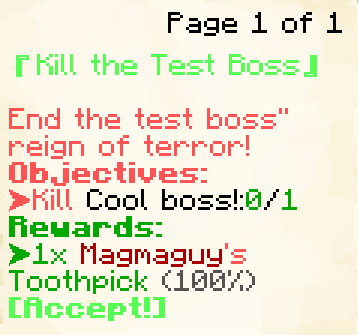
The screenshot shows the older book interface. /em alt changes the menu preference: Java players using that preference receive books before Minecraft 1.21.6 and Minecraft dialogs on newer versions. Bedrock players, and players using inventory menus, receive an inventory interface.
This example quest will give players the task of slaying 1 test_boss.yml. (The actual name of the boss displayed in the quest tracker will be the name: set in test_boss.yml.) And as a reward for completing the quest they will be rewarded with 1 Magmaguy's Toothpick.
Objectives become active together when the quest is accepted; Objective1, Objective2, and similar keys do not impose an order. All objectives must be satisfied before rewards are granted. By default, players then turn the quest in to its NPC. With requireQuestTurnIn: false in Quests.yml, completing the objectives instead attempts completion immediately, including the fetch-item checks and consumption. maximumActiveQuests limits accepted quests to 10 by default.
Creating Custom Quests
isEnabled
Sets if the quest is enabled.
| Key | Values | Default |
|---|---|---|
isEnabled | Boolean | true |
Example
isEnabled: true
customObjectives
Sets the quest objectives.
| Key | Values | Default |
|---|---|---|
customObjectives | Special [1] | none |
For a multiphase boss, reference the first phase's filename. Progress is credited when the boss dies, not on each phase transition. KILL_CUSTOM matches the custom boss filename without imposing questLevel as a minimum kill level.
Examples
KILL_CUSTOM:
customObjectives:
  Objective1:
    amount: '1'
    filename: my_cool_boss.yml
    objectiveType: KILL_CUSTOM
DIALOG:
customObjectives:
  Objective1:
    dialog:
    - "&a[Dialog NPC] &fCome here often?"
    - "&7&oI should eat more apples."
    filename: dialog_npc.yml
    npcName: Dialog NPC
    location: at dialog location.
    objectiveType: DIALOG
FETCH_ITEM:
Fetch objectives count matching EliteMobs custom-item tags in the player's inventory. At turn-in, the plugin checks all fetch objectives against one inventory snapshot before removing any items or granting rewards. If two objectives request the same item, the player needs their combined amount; the same stack cannot satisfy both requirements. Dropping an item can make a previously completed fetch objective incomplete again.
customObjectives:
  Objective1:
    amount: '99'
    itemName: Red Apples
    filename: my_quest_item_red_apples.yml
    objectiveType: FETCH_ITEM
ARENA:
customObjectives:
  Objective1:
    objectiveType: ARENA
    filename: my_arena.yml
    name: "Complete the Arena"
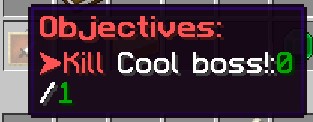
Special [1]
Expand Table
Custom Objectives are constructed using the following values:
| Key | Description |
|---|---|
objectiveType | Used to set the type of objective this represents. Valid values are KILL_CUSTOM, FETCH_ITEM, DIALOG, ARENA and CLASS_UNLOCK. KILL_CUSTOM indicates the quest involves killing a specific Custom Boss, FETCH_ITEM indicates that the quest involves getting a specific Custom Item, DIALOG indicates that the quest involves talking to an NPC, and ARENA indicates that the quest involves completing a specific arena. |
filename | Required .yml filename of the custom boss, custom item, dialogue NPC, arena, or class trainer. Use a loaded definition, not a display name. An objective without filename, or with a missing or unknown objectiveType, disables the whole quest with a console warning. An invalid CLASS_UNLOCK stays in the quest but cannot be completed. Correct every warning before offering the quest. |
amount | Positive whole number of bosses to kill or items to collect; defaults to 1. A value below 1 disables the quest. DIALOG, ARENA, and CLASS_UNLOCK each have a target of one and ignore this field. |
dialog | DIALOG only - the lines the NPC says when the player talks to them. |
location | DIALOG only - a free-text hint about where the NPC is, shown as $location in the quest menu summary line. |
name / npcName / itemName | Optional aliases for the display label used by FETCH_ITEM, DIALOG, ARENA and CLASS_UNLOCK. Set only one. All three aliases are translatable. Use an override for quest-specific wording or to hide spoilers. Without an override, FETCH_ITEM uses the custom item's translated name and DIALOG uses the NPC's translated name. KILL_CUSTOM uses the boss's configured name instead. |
class | CLASS_UNLOCK only: the class form ID to observe, such as adventurer. |
Provide a nonempty customObjectives map, with each objective under its own unique key (Objective1, Objective2, ...). Field names are case-sensitive and objective types use the uppercase values above. Older quest files that used the single-line KILL_CUSTOM:filename=X.yml:amount=Y string format are converted to this layout automatically on first load and saved back to disk.
Objective labels have their own translation entries, identified by the quest filename and a field path such as customObjectives.Objective1.itemName. Translate that entry in the language CSV even if the underlying item already has a translation. If the label has no translation, the original override is displayed so a hidden item name is not revealed. The source text stays in the quest YAML, and existing translator edits are preserved.
FETCH_ITEM behaviour
FETCH_ITEM identifies the custom item's filename tag, not its material, visible name, or lore. Items acquired before acceptance count, including matching items in armor and offhand slots. Acceptance, matching pickups and drops, and quest rewards schedule a recount on the next tick. Other inventory changes may not update the display immediately, but turn-in always checks the inventory again. On success, the required items are consumed; insufficient combined quantities cancel turn-in without partial removal.
DIALOG advances when the player interacts with a matching NPC placement, before that interaction opens its ordinary menu. It does not require the player to finish reading the dialogue. location is only a text hint, not coordinates for the compass. ARENA advances when the player completes the specified arena while the quest is active; an earlier completion does not count retrospectively.
Class unlock objectives
CLASS_UNLOCK observes a class unlocked through the Advanced Combat System. It does not grant the class itself. For example:
customObjectives:
  Objective1:
    objectiveType: CLASS_UNLOCK
    class: adventurer
    filename: class_trainer_adventurer.yml
class must identify an existing class form. filename points tracking toward its trainer NPC; an optional name overrides the displayed class name. The objective has a target of one and can recognize a class unlocked before accepting the quest, even if that class is not equipped. Class progression must be available, and the unlock is rechecked at completion. An invalid class or missing trainer filename leaves an uncompletable objective; it is not silently skipped.
Tracking and abandonment
Only one quest can be tracked per player. With autoTrackNextQuestOnCompletion: true in Quests.yml, completing the tracked quest selects another active, trackable quest on the next tick. questAutoTrackNextMessage accepts $questName. autoTrackQuestsOnAccept also defaults to true, but currently uses the tracking toggle: accepting a quest while already tracking one can stop tracking instead of switching. Select tracking again from the quest menu if needed.
The compass searches for supported destinations: custom bosses, dialogue or trainer NPCs, and bosses or treasure chests whose loot tables contain the requested custom item. It does not locate every possible source of an item, and arena or dynamic kill objectives have no dedicated destination search. In another world, it can point toward a suitable direct wormhole or display the destination world; this is not a guarantee of a traversable route. A missing compass destination does not prevent objective progress.
The normal abandon action asks for a second confirmation. The message and hover text use questAbandonConfirmationText and questAbandonConfirmationHover. Abandonment removes the active quest and its tracking; it does not start the completion lockout configured by questLockoutMinutes or grant the completion marker. The quest can be accepted again if its normal availability conditions allow it.
NPC quest markers are personal to each viewer and appear within 30 blocks. The quest compass includes vertical direction cues. During boss-bar quest dialogue, the dialogue area is exclusive: other managed boss bars are hidden, and the old hideKeyedBossBarsDuringQuestDialogue opt-out is removed. hideQuestScoreboardDuringQuestDialogue still controls the scoreboard separately.
Java boss-bar dialogue uses sneak to reveal the current page, then to advance. It applies Slowness III for up to 30 seconds rather than freezing the player. Taking uncancelled damage greater than zero dismisses quest screens and boss-bar dialogue. Bedrock uses chat for this dialogue. The dialogue artwork needs the corresponding resource-pack assets.
customRewards
Sets the quest rewards.
| Key | Values | Default |
|---|---|---|
customRewards | Universal EliteMobs loot format | none |
Example
customRewards:
- currencyAmount=50:amount=1:chance=0.05
- material=COOKED_COD:amount=3:chance=1.0
- filename=magmaguys_toothpick.yml:amount=1:chance=1.0
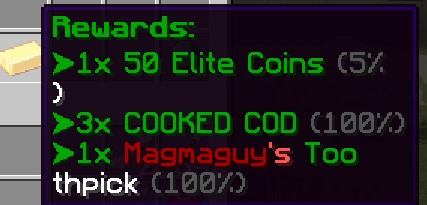
Custom quests do not auto-generate reward entries. If customRewards is empty, this table grants no items or currency; separately configured completion commands still run. Automatic reward entries apply to Dynamic Quests.
For authored scalable item rewards, the generated level uses the player's selected dynamic-dungeon level or current combat level, with a 10% chance of +1. Fixed and limited items retain their normal scalability rules. questLevel does not set the actual reward item's level.
Quest rewards are handed out directly: items go straight into the player's inventory (anything that does not fit is dropped at their feet) and currency is added to their balance. To run commands on completion, use questCompleteCommands rather than a command= loot entry.
Reward previews roll separately from delivery. A displayed random reward or level bonus is not reserved for the player.
questAcceptPermission
Requires one EliteMobs quest-completion marker before acceptance. An ordinary permission-plugin grant with the same name does not satisfy this check.
| Key | Values | Default |
|---|---|---|
questAcceptPermission | String | none |
Example
questAcceptPermission: elitequest.my_permission
questAcceptPermissions
Requires all listed EliteMobs quest-completion markers before acceptance. If questAcceptPermission is also set, that marker is required too.
| Key | Values | Default |
|---|---|---|
questAcceptPermissions | String List | none |
Example
questAcceptPermissions:
- elitequest.my_previous_quest_one.yml
- elitequest.my_previous_quest_two.yml
questLockoutPermission
Sets the completion marker granted after successful completion. It can unlock later quests and, when questLockoutMinutes is zero or negative, prevents repeating this quest. Omitting the marker does not disable a positive timed lockout.
| Key | Values | Default |
|---|---|---|
questLockoutPermission | String | none |
Example
questLockoutPermission: elitequest.my_quest.yml
questLockoutMinutes
Sets how long, in minutes, the player will have to wait before being able to do the quest again.
| Key | Values | Default |
|---|---|---|
questLockoutMinutes | Integer | -1 (uses the marker rule below) |
There are two lockout systems, and this key decides which one is used:
- Any value above
0uses the timed lockout tracker. The player is locked out of this quest for that many minutes after turning it in, is told how long is left when they try to take it again, andquestLockoutPermissionis ignored for the availability check. 0or lower falls back to the legacyquestLockoutPermissionmarker, which is granted permanently on completion. If noquestLockoutPermissionis set either, the quest stays repeatable.
When both fields are set and the duration is positive, the completion marker is still granted, but it expires after that duration. A later quest requiring that marker must be accepted before it expires. The timed lockout is stored against this quest's filename; it is separate from the marker used for prerequisites.
Example
questLockoutMinutes: 60
name
Sets the quest name. Accepts Color Codes.
| Key | Values | Default |
|---|---|---|
name | String | empty |
Example
name: "&aMy Great Quest Name"
questLore
Sets the lore of the quest that will appear in the in-game quest menu.
| Key | Values | Default |
|---|---|---|
questLore | String List | none |
Example
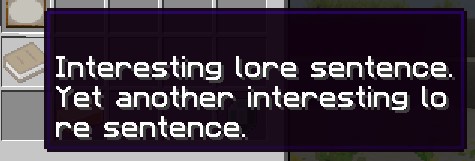
questLore:
- "Interesting lore sentence."
- "Yet another interesting lore sentence."
temporaryPermissions
Assigns real Bukkit permission nodes when the player accepts the quest, and reapplies them when an active quest is restored after login. Completing or abandoning the quest removes them, and logging out releases them until the next login. Each quest grants its nodes separately, so two active quests can share a node: ending one of them leaves the node granted by the other.
For ordinary item generation, configure the same permission in the item file. That check does not cover every delivery path.
| Key | Values | Default |
|---|---|---|
temporaryPermissions | String List | none |
Example
temporaryPermissions:
- elitequest.item_that_should_drop_only_during_quest.yml
questAcceptDialog
Sets the dialog that appears in chat upon quest acceptance.
When quest dialogue boss bars are enabled, this list doubles as the dialogue the quest giver speaks in the dialogue box before the quest is accepted. If it is empty, questLore is used for that dialogue instead.
| Key | Values | Default |
|---|---|---|
questAcceptDialog | String List | none |
Example
questAcceptDialog:
- "My hero! You are so helpful!"
- "I wish you the best of luck!"

questCompleteMessage
Sets the dialogue associated with turn-in. With useQuestDialogueBossBars enabled in Quests.yml, it can appear before the turn-in menu opens; otherwise it is shown on successful completion. A recently shown turn-in dialogue is not repeated at completion. Bedrock players receive chat text. Seeing this dialogue alone does not prove the quest has been rewarded.
| Key | Values | Default |
|---|---|---|
questCompleteMessage | String List | none |
Example
questCompleteMessage:
- "My hero! You have completed my difficult quest!"
- "As a reward you can have this loaf of bread!"

questCompleteCommands
Sets the commands that will run upon quest completion. Commands are dispatched from the console, so do not include a leading slash and do not rely on the player having permission for them.
Supported placeholders: $player for the player's name, $getWorld for the name of the world they are in, and $getX, $getY, $getZ for their location coordinates.
| Key | Values | Default |
|---|---|---|
questCompleteCommands | String List | none |
Example
questCompleteCommands:
- say $player has finished a quest at $getX, $getY, $getZ!
- give $player diamond 1

turnInNPC
Sets the filename of the NPC that players interact with to turn in the quest. It may differ from the quest giver; when omitted, the original quest giver is used. A separate turn-in NPC should use interactionType: CUSTOM_QUEST_GIVER; it can leave its offer list empty.
| Key | Values | Default |
|---|---|---|
turnInNPC | Filename | none |
Example
turnInNPC: my_cool_quest_npc.yml
Quest Givers
To assign a quest to an NPC who will give it to players, you need to configure the NPC file, not the quest file.
In your NPC configuration file (plugins/EliteMobs/npcs/), add:
interactionType: CUSTOM_QUEST_GIVER
questFileName:
- my_quest.yml
For NPCs that give multiple quests:
interactionType: CUSTOM_QUEST_GIVER
questFileName:
- quest_one.yml
- quest_two.yml
Use a YAML list even for one quest; a scalar questFileName: my_quest.yml is not loaded as an offer list. interactionType: CUSTOM_QUEST_GIVER is required to open that list.
See the NPC creation documentation for more information on configuring NPCs.
trackable
Allows manual and automatic compass tracking. Setting this to false does not stop objective progress, rewards, or temporary progress scoreboards.
| Key | Values | Default |
|---|---|---|
trackable | Boolean | true |
Example
trackable: true
questLevel
Sets the level of the quest. This is only a visual guide so the players can tell how challenging the quest will be. This does not in any way modify boss, item or other levels.
| Key | Values | Default |
|---|---|---|
questLevel | Integer | 0 |
Example
questLevel: 10
questAcceptSound
Sets the sound that plays when a quest is accepted. It is possible to both play Minecraft sounds and play sounds from a resource pack. When this is not set, EliteMobs plays the global quest accept sound from SoundsConfig instead.
| Key | Values | Default |
|---|---|---|
questAcceptSound | String | none |
Example
questAcceptSound: entity.experience_orb.pickup
questCompleteSound
Sets the sound that plays when a quest is completed (turned in). It is possible to both play Minecraft sounds and play sounds from a resource pack. When this is not set, EliteMobs plays the global quest complete sound from SoundsConfig instead.
| Key | Values | Default |
|---|---|---|
questCompleteSound | String | none |
Example
questCompleteSound: entity.player.levelup
Localization Support
The following fields support localization for multi-language servers:
namequestLorequestAcceptDialogquestCompleteMessage- Inside each entry of
customObjectives:dialog,name,npcName,itemName, andlocation
This allows you to provide translations for different languages on your server.
Permissions
As mentioned in the tables above, permissions are usually Strings or String Lists. But let us go into more detail how you will be using these to lock and unlock quests.
Important: questAcceptPermission and questAcceptPermissions check EliteMobs' internal quest markers, not ordinary permission-plugin grants. Completing a quest with the matching questLockoutPermission creates that marker. Granting the same string through LuckPerms will not unlock the quest. temporaryPermissions instead grants real permission nodes while the quest is active.
Let us say that you are making quest_3 in a series of quests that you have planned and you do not want players to be able to take quest_3 before they finish quest_2. We would configure the quest file like this:
questAcceptPermission: elitequest.quest_2.yml
questLockoutPermission: elitequest.quest_3.yml
Quest 2 must grant elitequest.quest_2.yml through its own questLockoutPermission. Quest 3 then requires that marker through questAcceptPermission. With the default nonpositive duration, completing quest 3 grants its permanent marker and prevents repetition. An already active quest is not a second independent copy merely because it is offered by another NPC.
Should you want to make a quest that only becomes available after the players have completed a series of quests, then you would configure the quest file like this:
questAcceptPermissions:
- elitequest.quest_2.yml
- elitequest.quest_3.yml
- elitequest.quest_4.yml
To make quest acceptance grant access to an item's normal drops, add a node to temporaryPermissions and use the same node in the item's permission field.
For example we would open up our quest file and add the following:
temporaryPermissions:
- elitequest.my_cool_item.yml
Then we would open up the item file, in our case my_cool_item.yml and then add the following:
permission: elitequest.my_cool_item.yml
The quest now grants the node checked by normal item generation while it is active, and removes it on completion or abandonment.
Parties and shared kill credit
Quest ownership always remains personal: joining a party does not accept, turn in, or reward quests for another player. However, when a party member earns kill credit, online party members in the same world and within sharedProgressRange (128 blocks by default in Party.yml) also receive progress for any matching active kill objective, including objectives for a specific custom boss.
Fetch items, NPC dialogue, and arena objectives are not shared. Nearby recipients need their own matching active quest and loaded player data. If their match has passed its waiting or starting stage, they must belong to that match's starting participant roster. The sharing check does not separately compare their instance with the kill's source instance; same-world proximity is still required.
Dynamic Quests
Dynamic Quests are procedurally generated quests that are automatically created and refreshed by EliteMobs. Unlike custom quests defined in configuration files, dynamic quests require no manual setup and adapt to each player's progression.
How They Work
- Quest giver: use an NPC with
interactionType: QUEST_GIVER. Its offers come from the dynamic pool rather thanquestFileName. - Quest tier: clamp combat level to 1–100, divide by five using whole-number division, then clamp the tier to 1–20. Combat level 45 therefore uses tier 9. The tier controls the template pool and kill count; the minimum target-mob level uses the player's clamped combat level.
- Three templates per tier: each template chooses an entity type from
questEntityTypesinQuests.yml. Unknown entity types and types without EliteMobs mob properties are skipped with a warning, and a list with no usable entries disables dynamic quest offers. Each template also picks a kill count fromtier + 1throughtier * 10, inclusive. A matching Elite Mob must meet or exceed the objective's minimum level; an ordinary vanilla mob does not count. - Pool refresh: all templates refresh every 1200 ticks, about 60 seconds at 20 TPS. Existing quests and their progress are retained. The menu combines existing dynamic quests with the current tier's three templates, avoiding duplicate template IDs; it need not contain exactly three entries.
- Dynamic dungeon adaptation: entering a dynamic dungeon updates existing dynamic quests' minimum mob level, displayed level, and name to the selected level, clamped to 1–100. It preserves their target counts and progress. It does not recalculate the currency reward.
- Rewards: currency is fixed when the offer is created as
floor(questLevel / 2 * targetKillCount). The item is generated from the normal loot system at turn-in, using the selected dynamic-dungeon level or current combat level, with a 10% chance of +1 and a final clamp to 1–100. Item availability and scalability still apply; the preview is a separate roll.